Deliver
Deliver is where the plan itself lives: workstreams, work packages, deliverables and steps, and the day-to-day business of doing and tracking the work. If you’re a step doer updating a few things on a Monday morning, a work package owner keeping a piece of the programme honest, or a delivery lead planning ahead, this is where you spend most of your time.
Before reading this page, make sure you understand what a sitting is and derived versus declared status, almost everything below assumes both.
Your first screen: My steps
Section titled “Your first screen: My steps”If you sign in as someone with steps assigned to you, Deliver opens on My steps, your own assigned steps, not the whole plan. This is deliberately the landing page for the section: for most people, “what do I personally need to touch today” is the most common reason to be in Deliver at all.
From here you can change a step’s state (not started, in progress, done) and add a note, and both save together, you don’t need a separate action for each. Ticking a step to done doesn’t just change that row: the deliverable’s own percent, and its work package’s, roll up immediately, without a reload, for you and for anyone else looking at it.
Declaring a step blocked
Section titled “Declaring a step blocked”If a step can’t move forward, use declare blocked rather than just leaving it stuck. This opens a short panel asking what’s blocking it, you can point at an existing RAID item, or create a new one on the spot, right there in the same flow, without leaving the page. See derived versus declared status for what a declared status actually requires (a cause, an owner, a review date).
A declared status always takes effect immediately, no matter how your instance handles other changes. Even on an instance configured to hold changes until approved, marking something blocked or on hold applies straight away, you’ll see it confirmed as “Marked blocked,” never “Proposed.” This is deliberate: a declared status is a statement of fact about the world (“this is genuinely stuck”), not a change to the plan itself, so it isn’t something that needs someone else’s approval before it’s true.
Work packages and the Gantt
Section titled “Work packages and the Gantt”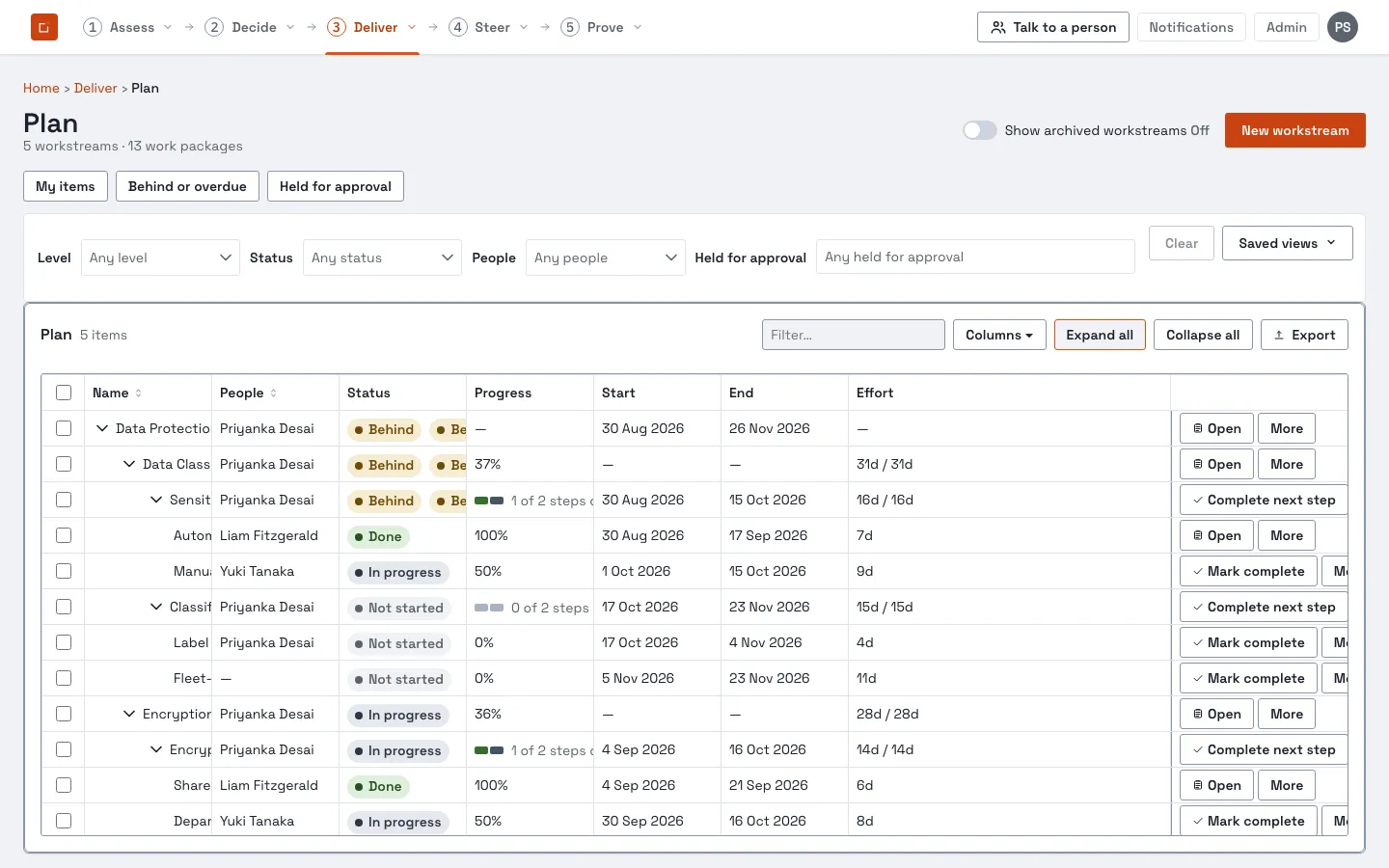
Work packages (Deliver → Work packages) lists what you own or can otherwise reach, see reach for why you might not see all of it. Opening one shows its deliverables and lets you edit dates, effort and assignees across several steps at once, all on the one page.
Every edit you make on a work package’s page, across as many steps and fields as you touch, saves as one sitting, with one justification. You’ll be asked to say why before you can save; an empty reason is refused outright, and nothing you typed is lost while you go back and fill it in.
The Gantt (Deliver → Schedule) shows the whole reachable plan on a timeline, with the usual scale and filter controls, and rows you can collapse. Opening any item from here, a work package, a deliverable, a step, always opens the same drawer you’d get anywhere else in the product, never a separate modal. A step that’s been declared blocked shows a marker directly on its bar, and on its parent deliverable’s bar too, so a blocker is visible at both the level it was declared and the level above it; opening either takes you to the same underlying item.
Why is this status what it is?
Section titled “Why is this status what it is?”Every status pill in the product can explain itself, click it (or use the “explain” control next to it) to drill down to exactly what’s driving it: a specific step, a specific date, a specific declared status, in plain language with a real number (“4 days behind expected pace,” “blocked 11 days”), not just a colour. An ordinary step that’s simply running late doesn’t get named individually in this drill-down unless it’s carrying a declared status, the explanation follows what’s actually driving the verdict, not every contributing step regardless of relevance.
Planning a new deliverable
Section titled “Planning a new deliverable”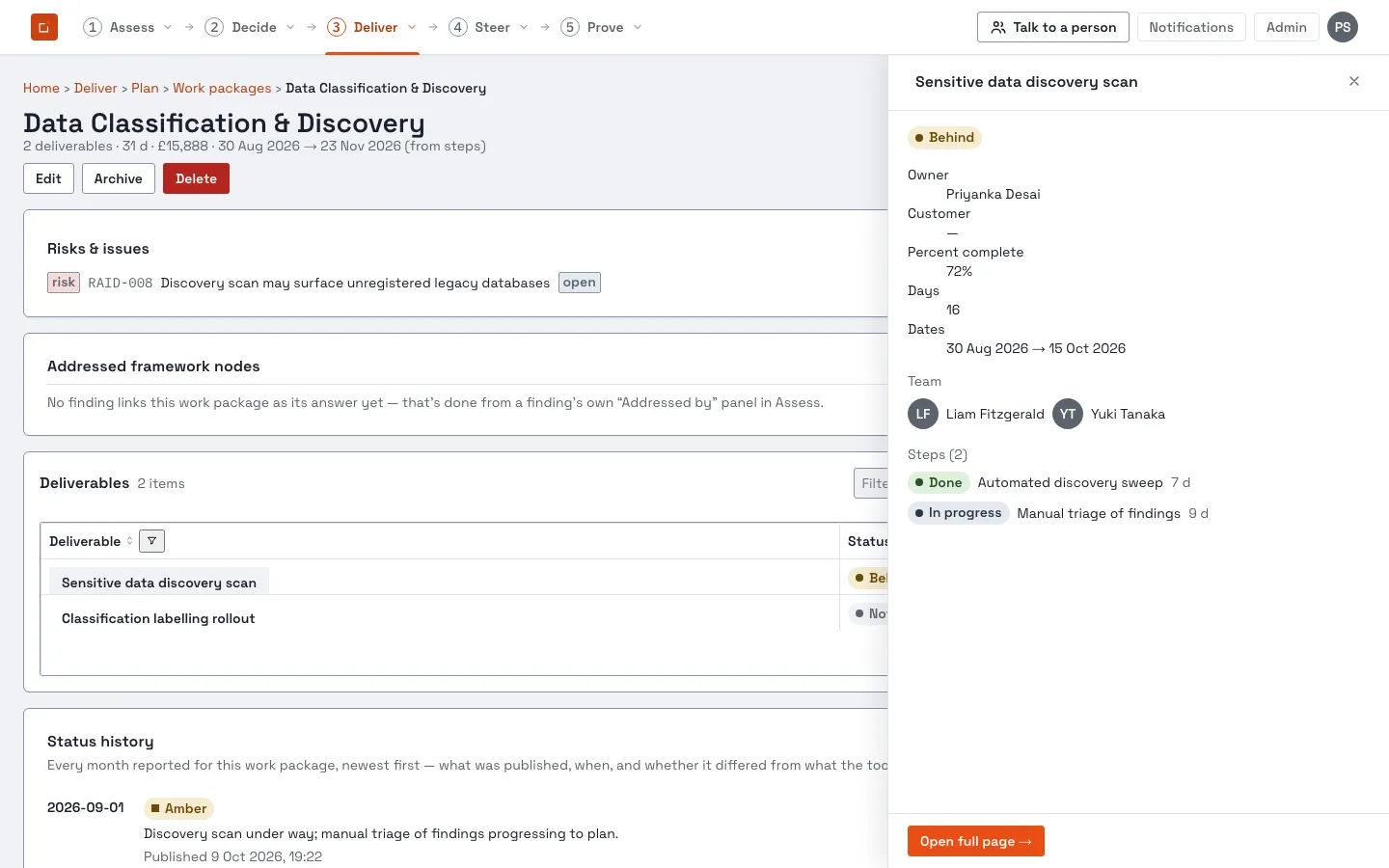
From a work package’s page, plan a new deliverable: name it, choose a lead and a customer, tick which benefits it feeds, and add its steps, all in one form, saved once. A deliverable is never allowed to have no steps at all; if you save one with none named yet, it’s created with a single, unnamed placeholder step standing in for it (see derived versus declared), add real steps to replace it as soon as you know what they are.
If you tie a deliverable to two or more benefits, the form tells you plainly what that means for reporting: unless you also give each benefit a percentage split that adds up to 100%, the deliverable’s full spend counts towards each benefit it feeds, so the benefit figures across your programme won’t sum to the total, and that’s expected, not a bug.
Nothing here is saved until you press Save. Leaving the page keeps your draft , including a half-filled form, so you can safely navigate away and come back.
Risks and issues
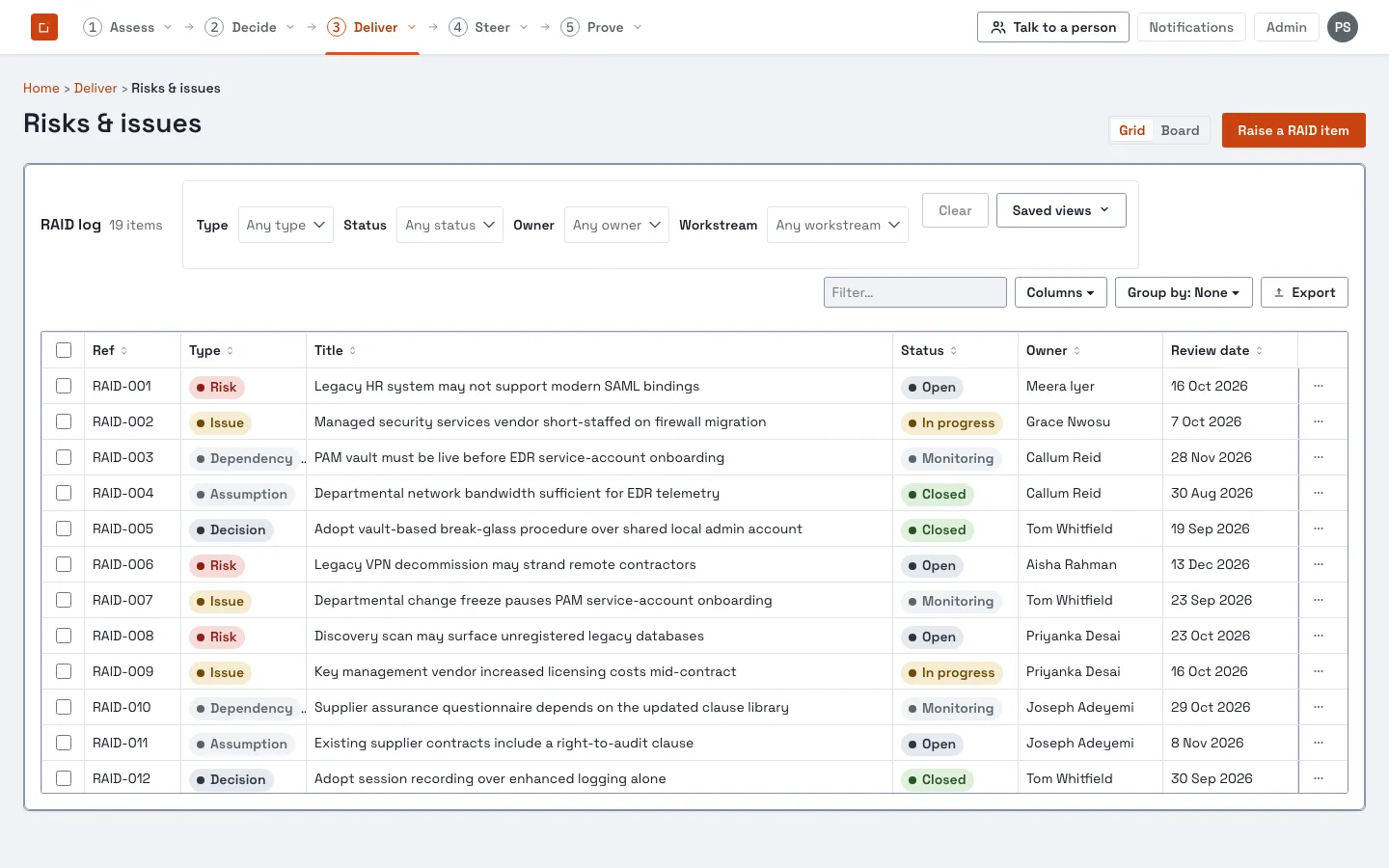
Section titled “Risks and issues”Deliver → Risks & issues is the programme’s register of risks and issues, each linked to the work it affects.
People, teams and reach
Section titled “People, teams and reach”You see the work packages and deliverables you own, are assigned to, or are named customer of, and everything under a workstream you lead. If a colleague with the same role as you can see something you can’t, that’s reach working as intended, not a fault.
Where to go next
Section titled “Where to go next”- A sitting: the mechanism behind every edit you make here.
- Changes to the plan, for what happens to your changes after you save them, and for proposing a change against a work package’s own top-level fields.
- The Prove section, for the definition of done and sign-off once a deliverable is actually finished.
- If your instance uses a tracker (Jira or Azure DevOps), your work package or step may show a linked external issue with pulled-in fields, kept up to date on refresh, if a refresh ever fails, the last successfully fetched value stays on screen with the failure named, rather than the field going blank.