Decide
Who this is for. A delivery lead, or an Assessor, ruling on what the programme will take on; and a Risk Owner who accepts risk.
Where you are standing. Findings from an assessment, and ideas people have raised, are waiting in the queue. Nothing in the plan answers them yet.
What you arrived wanting. To rule on each item, say why, and see the scope of the programme assemble from those decisions: what it will do, what business as usual will do, what the organisation will carry, and what it has challenged.
What done looks like. Every item has a ruling with a reason. The work you scoped in is in the plan, each work package says why it exists, and the programme scope reads as the sum of those decisions.
Decide has six screens, in this order in the menu: Triage, Scope the response, Programme scope, Risk acceptances, Handed to BAU and Decisions. Changes to a plan that already exists are not here; they are under Changes to the plan.
Triage: what needs deciding
Section titled “Triage: what needs deciding”Decide, Triage opens on What needs deciding: every finding or idea waiting for a decision. An item arrives in one of two ways.
- A finding, raised by an assessment in Assess. This needs the Assess module.
- A raised item, which a person adds directly with Raise something. It needs a name (What is it), How serious, Why it needs doing, and In your own words; effort in days is optional. The reasons are: assessment finding, strategic objective, regulatory obligation, customer commitment, opportunity or something else. A raised item has a reference beginning C, and a finding one beginning F.
The queue works on an instance with no Assess module, which is the case on the entry edition: raised items are then the only kind of item, and they are triaged on the same board.
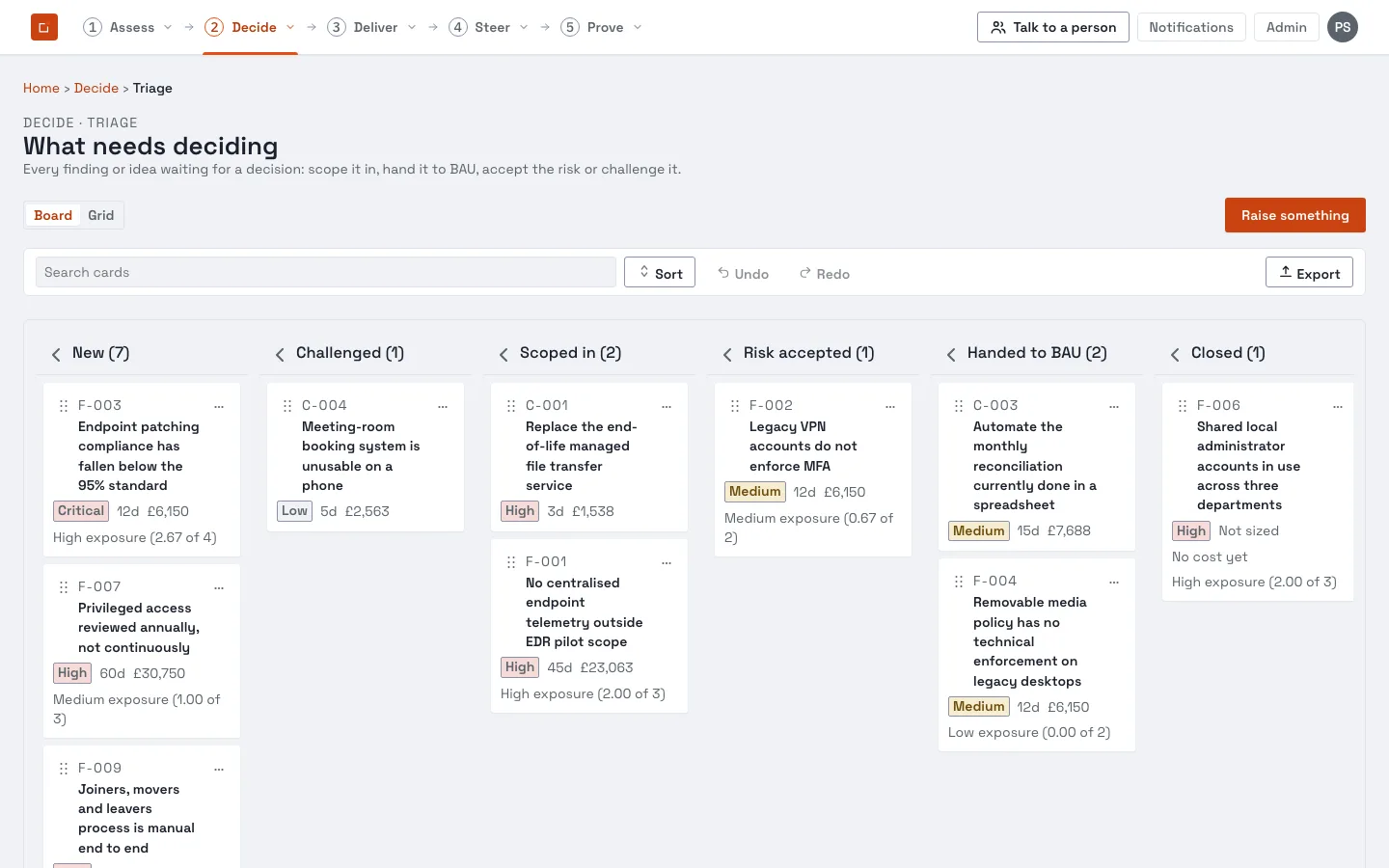
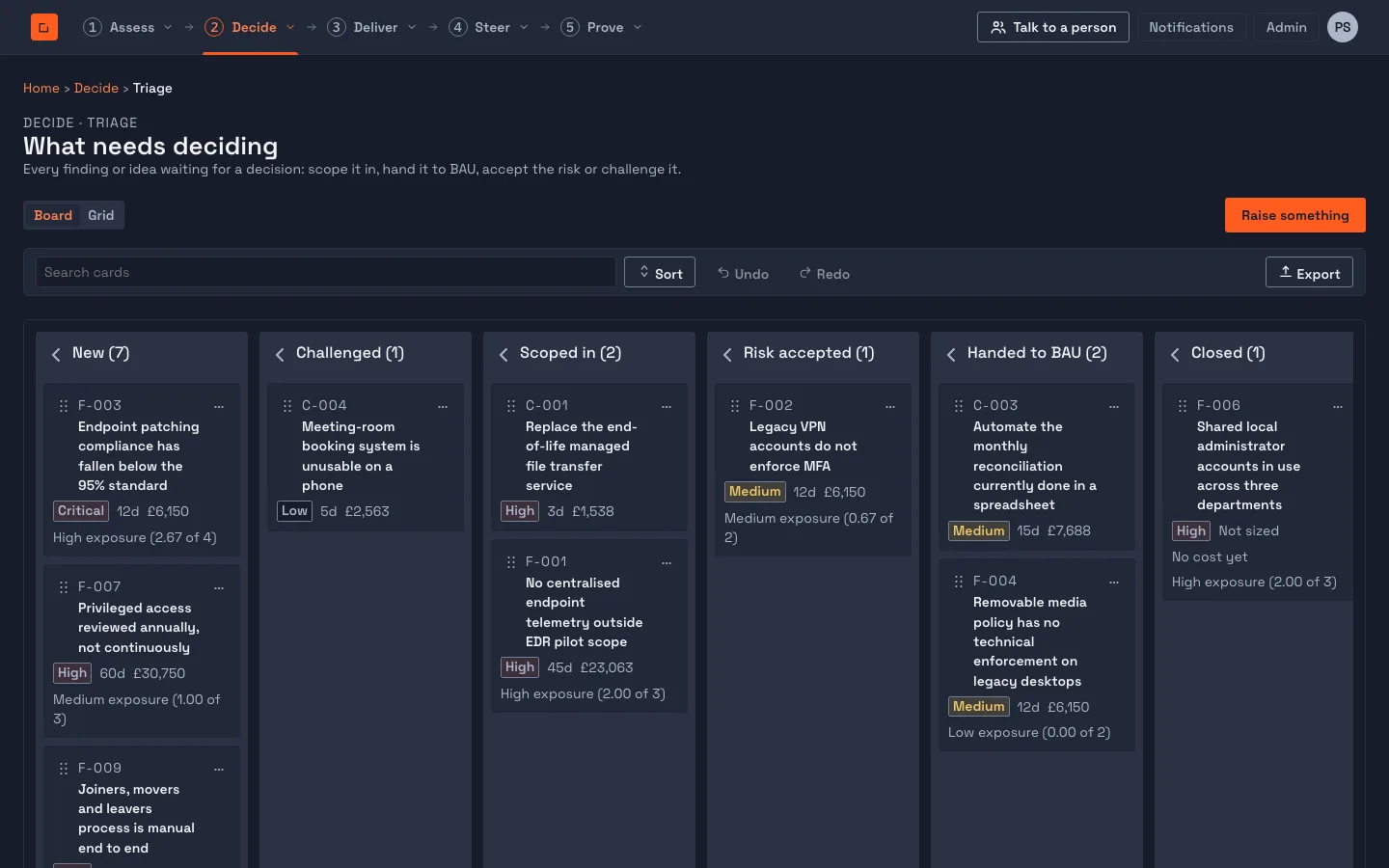
Board and Grid
Section titled “Board and Grid”A segmented control switches between Board and Grid. They show the same items and record the same rulings.
- Board. Six columns: New, Challenged, Scoped in, Risk accepted, Handed to BAU and Closed. Dragging a card to Challenged, Scoped in, Risk accepted or Handed to BAU is a ruling. Dragging onto New or Closed is refused with a reason (“Can’t move here”), and nothing is recorded.
- Grid. One flat list, sortable, filterable and groupable, with paging and multi-select. Selecting several rows lets you rule on them together, with one reason. Each row has an item-actions menu.
Open a card or a row to read the item in full: what it is, its cost and effort, its exposure and where it came from. From there you can edit it, rule on it, or open the source assessment. A person without the right to edit findings sees the item but no Edit.
The four rulings
Section titled “The four rulings”Every ruling needs a written reason, however it is made. There are four:
| Ruling | What it means | What else it asks for |
|---|---|---|
| Scope in | The programme will do this work. It joins the programme scope and appears in Scope the response. | A reason. |
| Hand to BAU | Business as usual answers it, outside the programme. It is still tracked and reportable, but never costed into the scope. | A reason, and optionally Their reference, such as a service-desk ticket, so an auditor can follow it. |
| Accept risk | The organisation will carry the risk. | A reason and Acceptance expires. Only a holder of the risk acceptance permission (Risk Owner, Admin) can do this. |
| Challenge | The item is disputed. It stays visible and tracked; a reviewer may close it or reopen it. | A reason. |
The reason is a line of the published scope, and it is what a board will read when it asks why.
Two rules apply to risk acceptance.
- The person who raised an item cannot also accept the risk on it. The refusal says so and nothing is recorded. The same separation applies to a finding: the person who assessed it does not accept it.
- An acceptance is not accepted for ever. When its expiry passes, the item returns to the queue by itself, marked Acceptance expired, with the date, and waits for a fresh decision. Nothing has to remember to look.
The programme scope card
Section titled “The programme scope card”Beside the queue, Programme scope assembles as you decide. It shows how many items are Scoped into the programme, Handed to BAU, Risk accepted and Challenged, how many are Still awaiting a decision, the Benefits in scope, and (where the items are scored) the Exposure carried.
Each count is also a filter: select it to see exactly the items in that state, with who ruled, when and why, and an Undo.
Money. Where you hold the cost view permission, the card shows the estimated cost of what you scoped in: effort multiplied by the day rate, never typed. If nothing is sized it says “Nothing sized yet”, and if no day rate exists anywhere it says “Not costed, no day rate set” rather than showing nothing or zero. Without the permission you see the whole stage and no figure at all.
Changing your mind
Section titled “Changing your mind”Undo (from the card) and Reverse this decision (from a row or the Decisions screen) both ask Why are you reversing it and record it. The original ruling stays on the record, marked reversed, with who made it and why; the reversal is its own entry.
Scope the response
Section titled “Scope the response”Decide, Scope the response lists everything you scoped in, with its reason and the work packages that answer it. It is where scoped work becomes plan.
- On an item, select Add a work package. You can also add one with no item behind it, with Add a work package at the top.
- Choose the Workstream, name the Work package, and give Why, in one line. If the item has benefits already associated, choose the Measurable benefit it answers.
- Select Create the work package.
Every work package keeps the reason it exists and, where there is one, the item it answers, so nothing in the plan is orphaned from its reason. If there are no workstreams yet, you can create one without leaving the dialog, if you have the permission to.
Where your instance holds changes until approved, a new work package is proposed, not applied: the dialog says it is held for review, and the row keeps reading 0 work packages until an approver decides. Ruling on an item is not plan structure and takes effect at once in either mode. See hold until approved.
Scoping in a work package needs the permission to manage the plan (Delivery Lead, Admin).
Programme scope
Section titled “Programme scope”Decide, Programme scope is the same figures laid out as a document: the Scoped into the programme table, exposure, benefits and cost, all computed from your decisions and none typed. It moves as decisions change.
Publish and export freezes it. Choose the Financial year and select Publish this scope; a published scope can be read later from Previously published, and Download deck, standard exports it as a PowerPoint deck. A published scope does not change when the plan changes afterwards. Publishing needs the permission to generate a business case (Delivery Lead, Admin).
Risk acceptances
Section titled “Risk acceptances”Decide, Risk acceptances lists every risk the instance is carrying by acceptance rather than by doing something about it: What was accepted, Accepted by, the rationale and the expiry, and whether that acceptance is still live. A banner counts any that have expired and are back in Triage awaiting a fresh decision. A Board Reader or Auditor can read this screen.
Handed to BAU
Section titled “Handed to BAU”Decide, Handed to BAU lists what business as usual answers rather than the programme: who handed it over, who now owns it, Their reference (or “None given”), and why it went to BAU. It stays on the record, so an auditor gets the same answer here as for anything the programme delivered itself.
Return to triage takes an item back, with a reason of its own (Why are you pulling it back). The hand-over stays on the record, marked reversed.
Decisions
Section titled “Decisions”Decide, Decisions is the log of every ruling made in Triage, on either kind of item, including reversed and superseded ones. Filter to one severity, one ruling or one status; a standing decision can be reversed from here without going back to find it in Triage.
Where to go next
Section titled “Where to go next”- Assess: where findings come from.
- Changes to the plan: how a change to the plan is reviewed, recorded and undone.
- Reach: why some items or figures may not be shown to you.
- Roles and permissions: which roles hold the permissions above.