Changes to the plan
Change control sits in Deliver, Changes, beside the plan it governs. It has three views, switched along the top: Waiting on me (for an approver), All changes (the permanent record), and Mine (for the author’s own side). Read what a sitting is first, as everything here is built on it, and hold until approved if you are not sure which mode your instance runs in.
Waiting on me: changes waiting for you
Section titled “Waiting on me: changes waiting for you”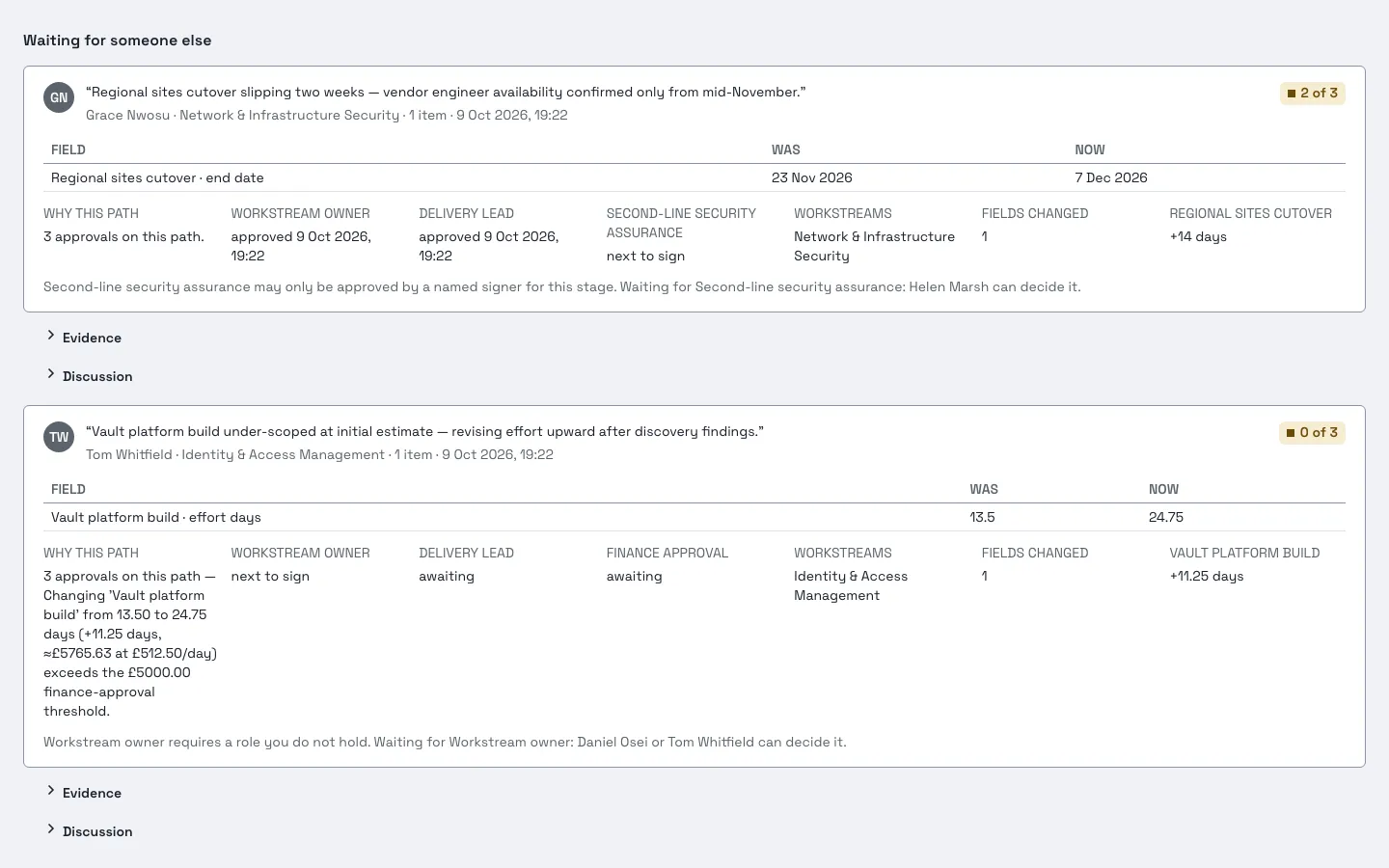
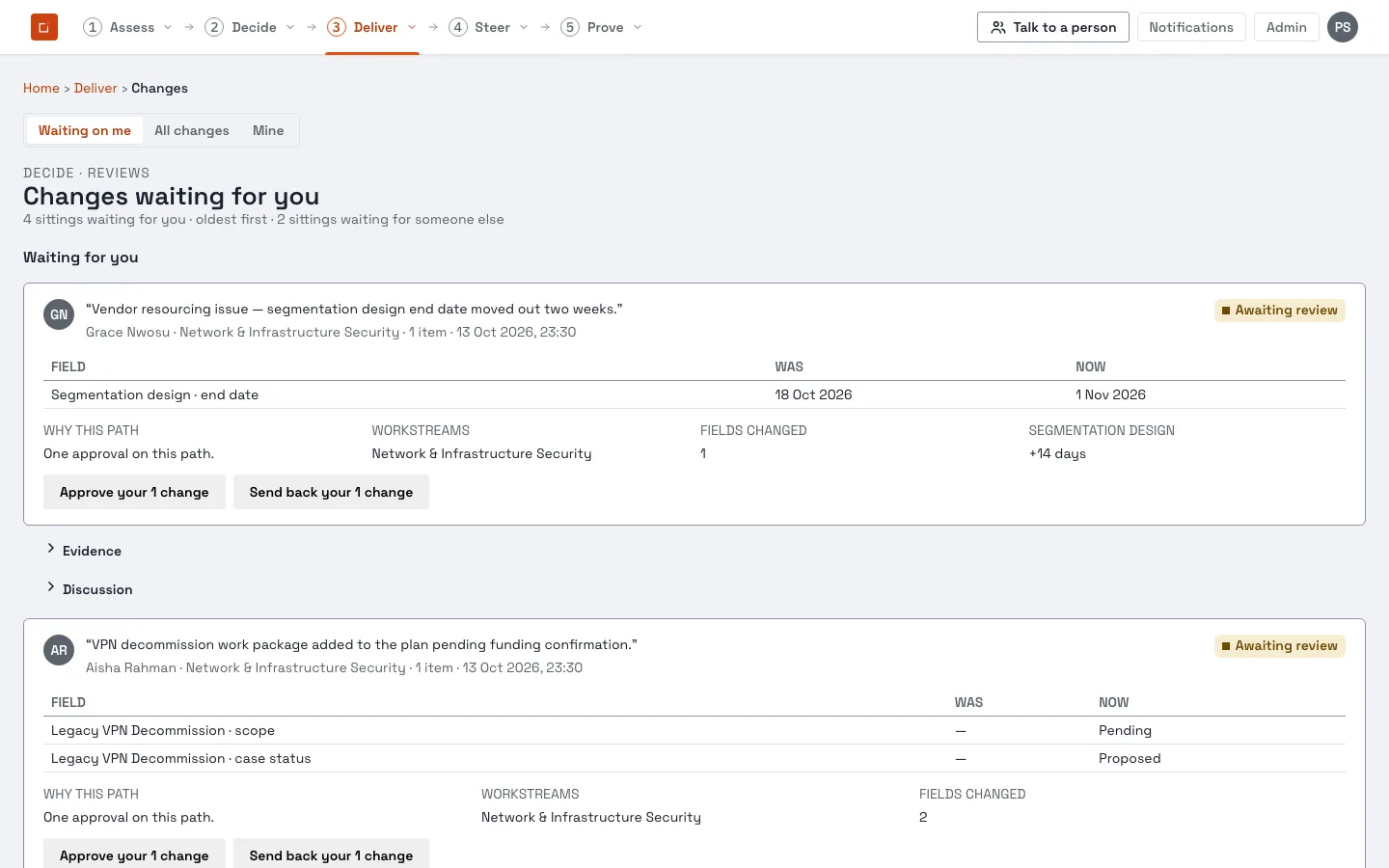
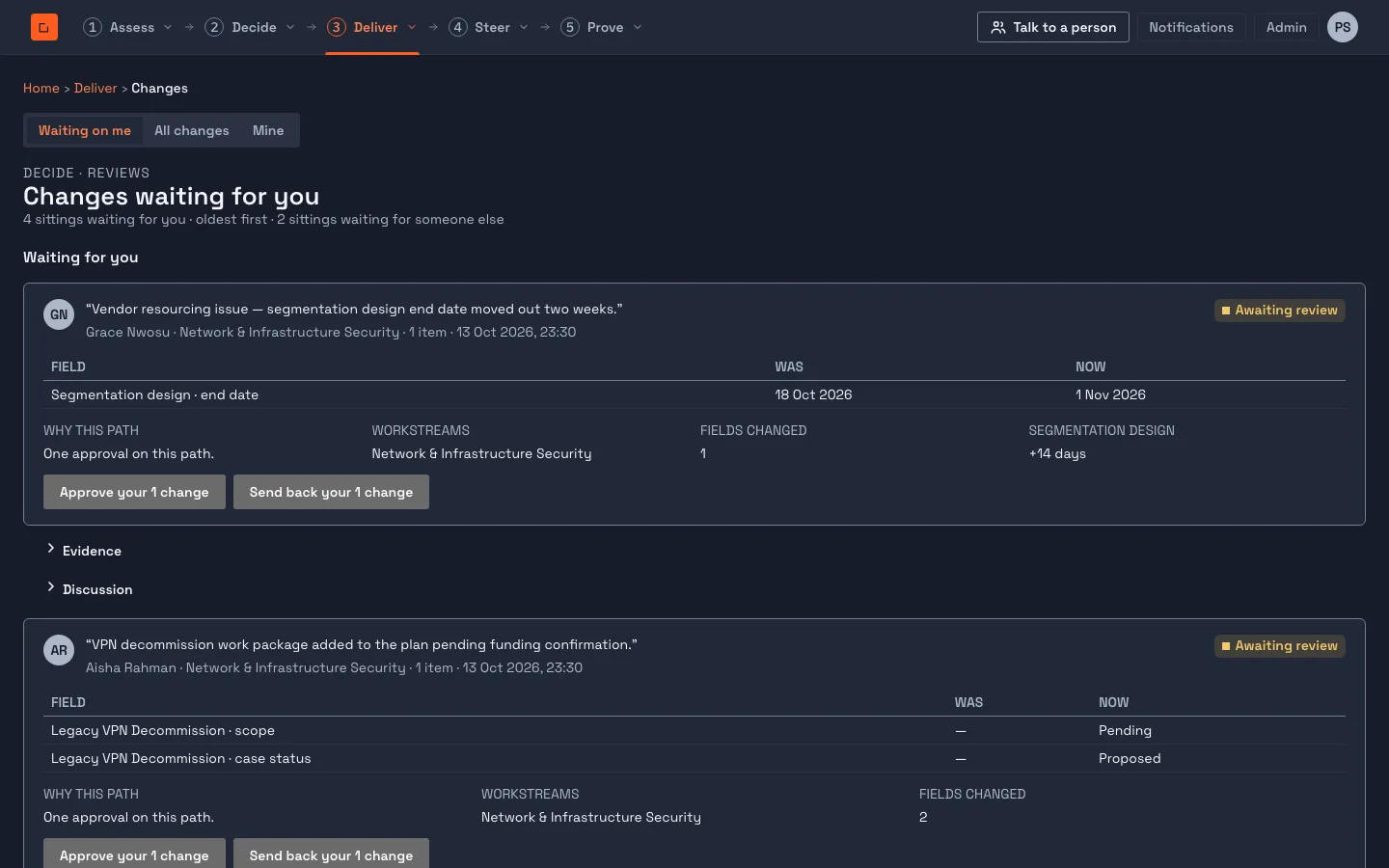
Deliver, Changes opens on Changes waiting for you. It lists every sitting
you can see that is still pending, oldest first, in two groups: Waiting for
you, and Waiting for someone else. Each card shows who proposed it, why,
what actually changed (the real fields, not just a category like “dates
changed”), and why this path applies to it: how many approvals it needs and why,
in plain language. An address ending ?sitting= followed by a sitting’s number
opens the list with that sitting expanded.
You have two options on a sitting you can decide:
- Approve. The button says what approving does: “Approve and apply” if this is the final stage, or “Approve, passes to Priya” if another stage is to come.
- Send back, with a reason. If the sitting was held, nothing on the plan ever changed, and the author is told plainly that there is nothing to put back. If it had already applied, sending it back reverts it, and you are told if any part of that cannot be completed safely (see below).
You cannot decide your own sitting. If it is yours, the card is read-only and says so. This holds even for an administrator.
You decide what you can see
Section titled “You decide what you can see”A sitting can hold several changes, across several workstreams. You approve or send back only the changes you can see, and the buttons are worded as your own action: “Approve your 2 changes”. The sitting is decided once every change in it is decided, and nothing applies until then. A change you cannot see is never described to you, counted, or approved on your behalf.
Once you have decided everything you can see, the card says Waiting on other approvers. That the sitting is still open is the one thing you can infer; the product does not disguise it.
If a sitting is waiting for someone else, the card says who can decide it and why it is not you (“Waiting for someone else” group), rather than offering buttons you cannot use.
Each change needs only the approval steps that change would trigger on its own. A step that fires because a sitting spans several workstreams is a gate on the sitting: it is signed once, by someone who sees all of it.
When nobody can sign a gate
Section titled “When nobody can sign a gate”If a gate has no eligible signer, for example because each holder of the role sees only one workstream, the sitting shows who is needed. Someone who holds the permission to administer approval paths, and who sees the whole sitting, can Release that stage with a reason (Release …?, then Release stage). The reason is recorded. A release satisfies the gate only; every change still needs its own approval.
Reviewing item by item
Section titled “Reviewing item by item”On a held sitting you can open the individual changes. Accept and Reject each one, and, if you hold the amend permission, Amend one before approving. The register shows afterwards which were accepted, which rejected and which amended, and by whom.
Rejecting a change also rejects any change that refers to it, even one you cannot see.
All changes: the permanent record
Section titled “All changes: the permanent record”Deliver, Changes, All changes (the Change register) lists every sitting ever made against the active baseline: what changed, who, when, why, its approval path and its outcome. It is read-only for deciding; you cannot approve or send back from here.
What you can do here, and only here, is Revert an already-approved change. It is a separate, rarer act from sending something back mid-review. Reverting creates a second, compensating sitting that puts the affected fields back, linked to the one it undoes, and shown as its own entry (“Reverts”, “Reverted”).
A revert can refuse to happen. If something has moved on since (a child item was added under something this sitting created, the item was deleted, or a later sitting changed the same field again), nothing is reverted, and you are shown what is blocking it, one reason per problem. There is no partial revert.
Mine: your own proposals
Section titled “Mine: your own proposals”Deliver, Changes, Mine (Your changes) shows what you have proposed and where each one stands. If your instance holds changes until approved, a pending proposal reads “Proposed, plan unchanged” and you can withdraw it yourself at any point before it is decided, with nothing to undo, because nothing was ever applied.
If something you proposed was sent back, you see the reviewer’s reason on the card and, under hold mode, a reminder that the plan never changed, so there is nothing to put back; propose again once you have addressed it. You can also read and reply to the discussion on a sitting from here.
Proposing a change here
Section titled “Proposing a change here”Mine also has a small form, Edit a work package, for proposing a change directly against a work package’s own name or programme year, when there is no drawer yet for what you want to change. Pick a work package, edit a field, and a Save bar appears showing what you have touched; type one reason and save.
If something else already has a pending proposal on it, you are asked to choose:
- build on the existing proposal: not available; there is no way to add to a sitting someone else already has open,
- propose against the current plan instead: a second, competing proposal that sits alongside the first. Both show as pending; nothing here decides which one wins, so a reviewer applies only the one that should stand, or
- just look: a read-only view of what is proposed, with no edit form.
The approval path is shown before you save
Section titled “The approval path is shown before you save”As you type, the Save bar fills in, after a short pause, with the actual named people your change needs signed off, drawn from the live approval-path configuration: something like “Grace Lin (workstream owner), Daniel Osei (delivery lead)”. It is the same reasoning that is pinned to the sitting once you save it.
Where to go next
Section titled “Where to go next”- A sitting, hold until approved and the acceptance and approval chains: the concepts this section is built on.
- Reach: why you might not be offered a decision on a sitting you can see.
- The administrator guide for configuring the change-approval chain itself.