The user guide
This documentation describes Works 1.0.5. Earlier versions differ; if you run one, upgrade before relying on these pages.
OTB Works is organised the way the product itself is: five sections, always in the same order, reached from the bar at the top of every screen.
| Section | What it’s for |
|---|---|
| Assess | Measuring a programme against a framework, and turning findings into accepted risk or real work. |
| Decide | Ruling on what needs deciding (scope it in, hand it to business as usual, accept the risk or challenge it) and seeing what the programme has taken on. |
| Deliver | The plan itself: workstreams, work packages, deliverables, steps, and doing the work. |
| Steer | The programme-level view: dashboards, spend, and the runway. |
| Prove | Reporting status, publishing a board pack, and proving a deliverable is actually done. |
Two screens sit outside these five, reached from the account menu at the top right rather than the bar: Admin (see the administrator guide) and Licence, which shows what your instance is entitled to.
Start here, before anything else
Section titled “Start here, before anything else”What a sitting is. Almost nothing else in this guide makes sense without it, it’s the one mechanism behind every change anyone makes to the plan, however small.
Then, as they become relevant to what you’re doing:
- Derived versus declared status: why some fields can’t be typed into, and why a status has to say what caused it.
- Hold until approved: what changes if your instance holds proposals for approval before they take effect.
- Reach: why you see some things and not others.
- The acceptance and approval chains: who signs off work, who approves a change, and in what order.
Find your own role
Section titled “Find your own role”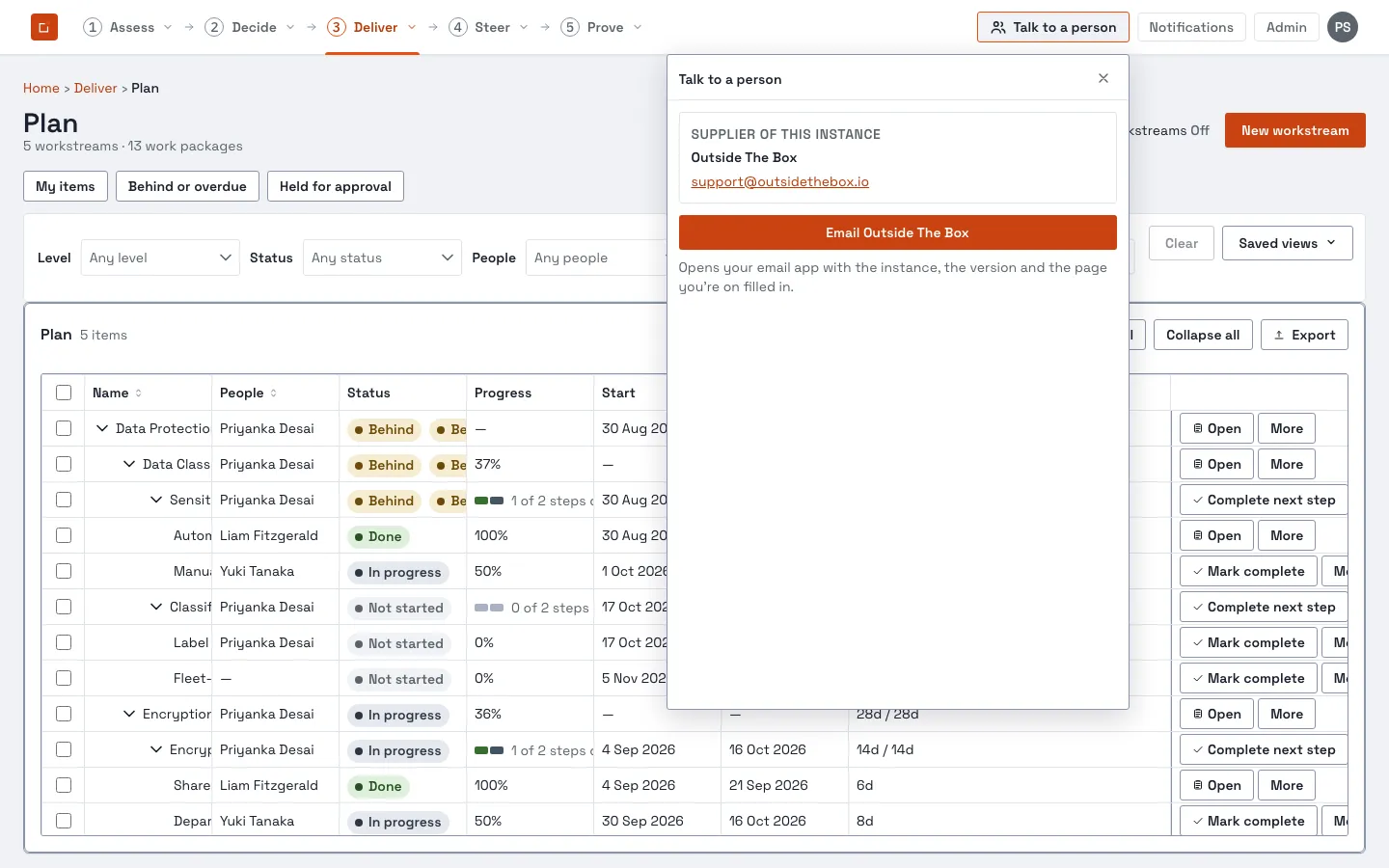
OTB Works doesn’t gate what you see by job title; it’s built around 14 roles (listed on the roles and permissions page), each granting a specific, named set of things you can do. An administrator can see the exact wording for every role on the people and access screen. In everyday terms:
- Planning work? You’re likely a Delivery Lead or Work Package Owner , start with Deliver.
- Doing the work, updating a few steps on a Monday? Sign in and Deliver opens straight on My steps, your own assigned work. See Deliver.
- Approving a change someone else proposed? You’re a Reviewer, or a Member/Workstream Lead/Work Package Owner approving within your own reach. See Changes to the plan.
- Taking something to a board, read-only? You’re a Board Reader, see Steer and Prove.
- Managing money? You’re Finance, see Steer’s spend and runway pages, and Prove’s board pack.
- Assessing against a framework, or accepting risk? You’re an Assessor or a Risk Owner, deliberately never the same person for the same finding. See Assess.
- Accepting a deliverable as a customer? You see only what’s yours to decide on , see reach and Prove’s acceptance section.
- Reading everything, changing nothing? You’re an Auditor, every read screen in the product is open to you; none of the write actions are.
What this guide does not cover
Section titled “What this guide does not cover”The screens for in-app notifications (the bell in the top bar), the CTPv2 importer (Admin, Import) and Advisor (its own entry, plus Admin, Advisor settings; it needs a model endpoint and key that you supply) exist in the product. This guide does not yet have a page on how to use each of them. Advisor is covered in the administrator guide.