Licensing
Reached from the account menu → Licence (not one of the five main sections , it’s account-level, and only a System administrator can open it; anyone else who navigates there directly is refused, including an Admin who is not also a System administrator). Shows what your instance is entitled to, and lets a System administrator install a replacement licence file. Running the instance , the licence, single sign-on, outbound email, updates, Advisor’s settings and Support settings, is its own permission, separate from administering the programme; see Roles and permissions.
Editions and modules
Section titled “Editions and modules”Three editions, shown in the product as Deliver (Starter), Assure (Standard) and Enterprise. All five of the product’s main sections (Assess, Decide, Deliver, Prove, Steer) are available in every edition; the edition ladder doesn’t gate the sections themselves, only specific modules inside them. The table of what each edition includes, and which modules are add-ons, is on Editions and modules.
There is no seat or user limit anywhere in the licensing model, the only limit a licence carries is its own term end date.
Advisor is an add-on. It needs a model endpoint and an API key that you supply. See Advisor looking further.
What an unentitled feature actually looks like
Section titled “What an unentitled feature actually looks like”Nothing is ever hidden from an administrator. An Admin always sees every
module, including ones the current licence doesn’t grant, those are shown
clearly marked “Available in <edition>”, never removed from the screen
entirely. Anyone who isn’t an Admin, though, never sees an unentitled feature at
all: no greyed-out tab, no teaser, nothing. This is deliberate, an Admin needs to
know what upgrading would unlock; nobody else needs to be shown something they
can’t have.
Where an unentitled feature has its own nav tab that would otherwise look like a missing feature (the Deliver section’s Integrations tab, specifically), the tab itself still appears, but opening it shows a plain, worded explanation of exactly which edition it needs, never a blank screen, and never a generic error. The same rule applies at the API level: a request for something not entitled comes back as its own distinct status (402, not 403 or 404), specifically so the client can render “available in…” rather than treating it as a permission problem.
Your instance id
Section titled “Your instance id”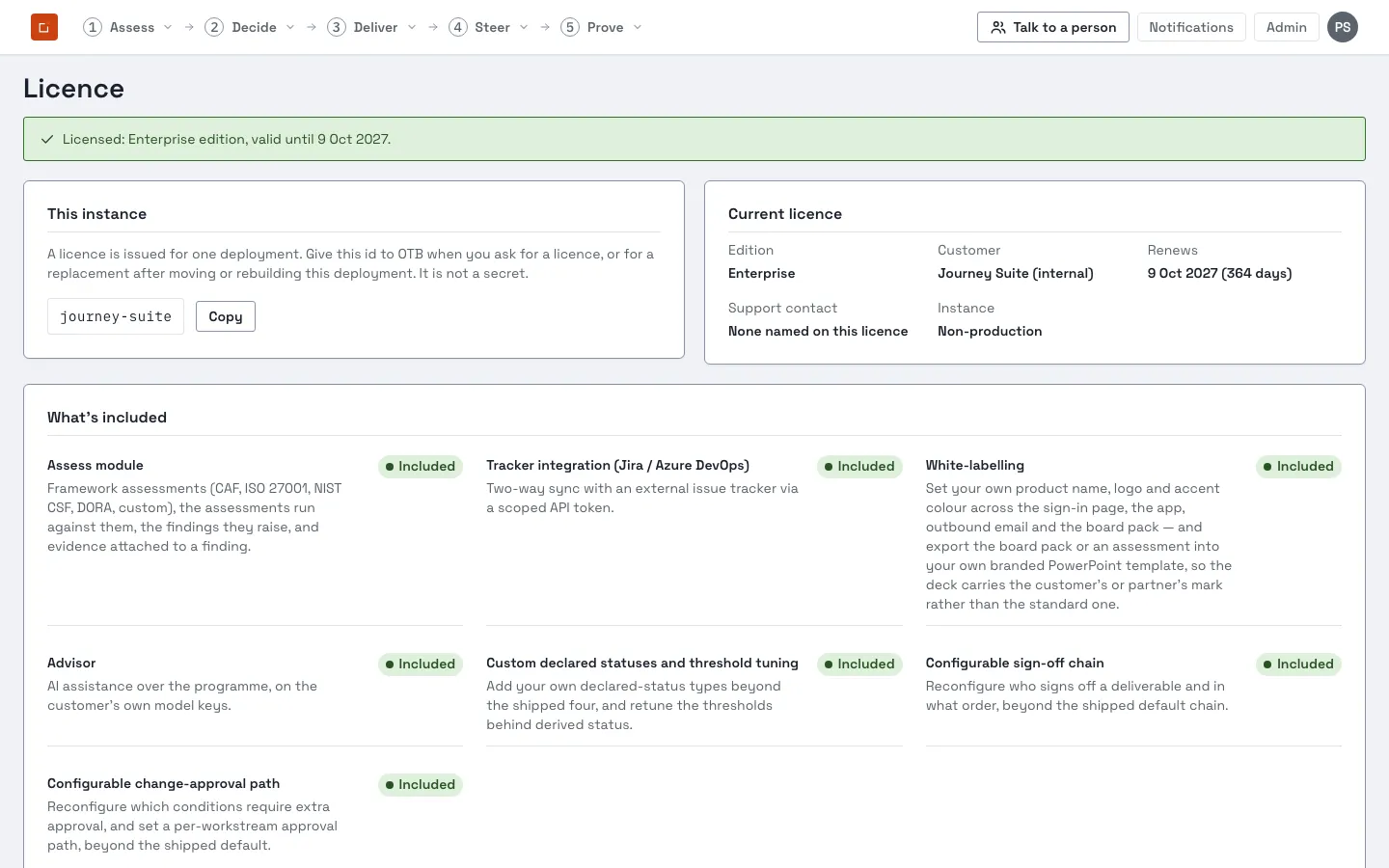
At the top of the Licence page, above the licence itself, is This instance ,
a short serial number that looks like otbw-K7X2-9QMD-3BV1-ZR0T, with a Copy
button.
A licence is issued for one deployment, and this is the deployment. When you ask OTB for a licence, your first one, a renewal, an edition change, this is the thing they need from you. It is shown on every instance, including one that has never been licensed, precisely because you need it before you can be issued a licence at all.
It is not a secret. It is a serial number, not a password: knowing it lets nobody licence anything, because a licence still has to be signed by OTB. Read it down a phone, paste it into an email, put it in a ticket, whatever is easiest.
It stays the same across restarts, upgrades and container rebuilds, and it comes back with a restore from backup, a restored instance is the same deployment and keeps its licence. If you rebuild this deployment from scratch, without restoring its database, it becomes a new deployment with a new id, and your existing licence will no longer install on it. That is not a problem, just a step: send OTB the new id and ask them to reissue. They can, and the change is recorded on their side rather than quietly overwritten.
Installing a licence
Section titled “Installing a licence”Paste the licence file’s contents, or choose it as a file, and click Install licence. A file that doesn’t verify, tampered, corrupted, or signed by a key this instance doesn’t trust, is refused with a plain explanation, and your existing licence is left exactly as it was: an install attempt never partially applies, and never leaves you with no licence at all just because the new one was bad.
A licence issued for a different instance is refused, and says so in those words. If you install a licence that names another deployment (a file copied between your production and test environments, most often), you get a plain message naming the instance it was issued for and the instance this one is, and saying explicitly that the licence is genuine and correctly signed, it simply belongs somewhere else. It is not reported as a tampered or invalid file, because it isn’t one, and your existing licence is untouched. The fix is to ask OTB to reissue against the id shown under This instance.
Downgrading is real and immediate. Installing a licence for a lower edition, or one that drops a module you were using, takes effect straight away, the previously-available module is still listed on this screen (marked “Available in…” again), and anywhere else in the product it now shows the same not-entitled explanation as if it had never been licensed. Nothing about your plan data is affected by a downgrade; only what you can do or see changes.
What happens when a licence lapses
Section titled “What happens when a licence lapses”A licence’s status is always one of seven honest states, never a plain yes/no:
- Not installed: a fresh instance with no licence file yet. The instance does not run. Nothing in the product can be read or changed; the product reports “This instance is not running: it has no licence.” Only the steps needed to license it still work, see “Without a licence of its own, an instance does not run” below.
- Invalid: a file exists but doesn’t verify (truncated, mis-copied or altered). Treated exactly like Not installed: the instance does not run until a licence that verifies is installed. It is not read-only and it does not fall back to a lower edition, a file that does not verify proves nothing, so it unlocks nothing.
- Valid: verifies, and you’re within the licensed term.
- Grace: the term has ended, but you’re still within a 30-day grace period. Everything continues to work exactly as before; you’ll see a persistent banner saying so.
- Lapsed: the grace period has also passed. The instance becomes read-only: everything already in it can still be read and exported by everyone who could read it before , including a module you had bought, such as Assess, tracker integration or Advisor history: your licence is never reset to the base edition while read-only, only frozen for writes. Nothing whatever is deleted, but no new change is accepted anywhere, in any edition or module, until a current licence is installed, no new users, no triaging, no new assessments. Everyone signed in sees a banner saying exactly that, on every screen, so nobody discovers it by having a Save button refuse them. Four things still work, deliberately: signing in, exporting (including the board pack and its branded template, your data is yours and stays yours), installing a licence (how you leave the state), and the update mechanism’s own safe operations (staging, cancelling a stage, and applying a security fix), patching an instance is hygiene, not something a lapse should be able to hold hostage. A lapse is never a lockout.
- Issued for a different instance: the file verifies perfectly and names another deployment. Its own state, deliberately separate from Invalid, because nothing is wrong with the file, but this instance still has no licence of its own, so it does not run, exactly like Not installed. Ask OTB to reissue against the id shown under This instance above. Note that restoring a backup onto new storage gives the deployment a new instance id, and so puts it in this state until a licence is reissued.
- Revoked: the file verifies perfectly and OTB has withdrawn it. Its own state for the same reason Issued for a different instance is: nothing is wrong with the file, so telling you it was “invalid” would send you looking for a problem that isn’t there. Read-only, exactly like Lapsed above and for the same reason, reading and exporting continue, writes wait for a current licence; ask OTB for a replacement. See “Revocation” below for when your instance learns this and when it does not.
Without a licence of its own, an instance does not run
Section titled “Without a licence of its own, an instance does not run”Not installed, Invalid and Issued for a different instance all mean the same thing in practice: this deployment has no verified licence issued for it, and the product refuses everything, reading as well as writing, in every stage and module. This is deliberately stricter than Lapsed or Revoked, which stay readable and exportable: read-only is kept for an instance that has genuinely held a licence of its own.
What still works in those three states is only what you need in order to get out of them:
- Signing in (including single sign-on).
- The first-run setup wizard, which shows this deployment’s instance id.
- Account → Licence: viewing the instance id and licence status, and installing a licence.
Installing a valid licence restores the instance immediately. No licensing state deletes anything: your data is untouched throughout, and a lapsed or revoked licence still leaves it readable and exportable.
How your instance checks a licence is genuine, and why it never phones home
Section titled “How your instance checks a licence is genuine, and why it never phones home”This section is here because assurance buyers ask, and because the answer is a good one. It describes what your own instance actually does, so that you, or your security team, can check the claim rather than take it on trust.
It verifies offline. Always. There is no exception.
Section titled “It verifies offline. Always. There is no exception.”Verifying a licence is a pure, offline operation. Not at install, not at boot, not on a schedule, not on failure does your instance ask anybody whether your licence is good. There is no licence server to be unavailable and nothing to allow through a firewall.
That is not a configuration you could turn off by mistake: the software that verifies a licence is a pure function of the file you installed and a public key baked into the image. It has nothing to call. Everything needed to prove a licence genuine travels inside the licence file itself.
The baked-in public key is found the same way whatever process supervisor,
orchestrator or shell starts the container with, it is resolved from where
the running server’s own code lives inside the image, never from the
directory the process happens to be started from. You do not need to set anything for this; it
is only worth knowing if you run this server outside the shipped container
image entirely, in which case OTB_LICENCE_TRUST_PATH lets you point it at a
trust file explicitly.
One thing your instance may READ, if you switch it on
Section titled “One thing your instance may READ, if you switch it on”There is a single, optional exception to “contacts nothing”, and it is worth stating precisely rather than leaving you to discover it.
On Admin ▸ Updates you can switch on a scheduled check of OTB’s public release feed (off by default, see Installing and upgrading). Among the five public files it reads are OTB’s current signing-key list and its list of withdrawn licences.
What that does and does not change:
- It is a read, not a report. The request is an anonymous HTTPS GET of public files. It carries no instance id, no licence id, no customer name, no version, no counts, no credentials, nothing about you at all. There is still no telemetry, and OTB still has no way to ask your instance anything.
- Verification is unchanged. Your licence is still proved genuine against the root key baked into your image, offline, exactly as described below. Nothing fetched is trusted because it was fetched.
- What it changes is how quickly a withdrawal reaches you. With the check on, a licence OTB withdraws stops working here within the check interval (six hours by default). With it off, as it is unless you say otherwise, the only limit on a withdrawn licence is its own expiry date.
If your policy is that this appliance talks to nothing, leave it off and nothing about the paragraphs below changes.
What it checks, in order
Section titled “What it checks, in order”A licence file carries three things: the licence itself, a signing-key list, and (when there is anything to say) a revocation list. The last two are signed by OTB’s root key, which is held offline and is the only key your instance trusts directly.
- The key list is genuine. Its signature is checked against the root public key baked into your image. A key list signed by anybody else, including a perfectly well-formed one, is refused.
- The key it names is allowed to sign licences. Keys are marked for one purpose. OTB’s release-signing key, which signs software updates, can never sign a licence, and a licence key can never sign a release.
- That key is current. It must be marked active and within its validity window. A retired key is refused.
- The key list is not stale. Your instance remembers the newest key list it has ever accepted and refuses an older one, so a withdrawn key cannot be brought back by re-presenting an out-of-date list.
- The licence itself was signed by that key. Any edit to the licence, a changed edition, a later expiry date, an added module, breaks the signature and the file is refused.
- The licence is for this deployment. Its
instanceIdmust match the id shown under This instance above. - The licence has not been revoked. See below.
Steps 1 to 5 are about the file being genuine; 6 and 7 are about it being yours and current. The distinction matters when you read a refusal: a file can be flawless OTB output and still be refused because it is somebody else’s licence or one that has been withdrawn, and your instance says which.
If any step fails, the file is refused with a message saying which check failed, never a generic “invalid licence”, and whatever licence you already had keeps working, untouched. A refused upload never leaves you worse off.
Why this means OTB can rotate keys without touching your instance
Section titled “Why this means OTB can rotate keys without touching your instance”Because your instance trusts only the offline root, and the signing keys arrive inside each licence, OTB can replace or retire a licence-signing key and simply issue you a licence under the new one. You install it the ordinary way, from the Licence page. No new image, no configuration change, no restart, no downtime.
Revocation, what it can and cannot do
Section titled “Revocation, what it can and cannot do”If a licence is revoked (it was shared outside the instance it was issued for, say, or a commercial arrangement ended), OTB adds it to a revocation list. That list travels inside the next licence file anyone installs, and, if you have switched on the update-feed check, your instance also reads the current list from OTB’s public feed on its own schedule. Once your instance has seen a licence named on such a list, that licence can never be installed here again , including if someone restores an old backup of it.
Being straight about the limits, because the honest version is more useful than a reassuring one:
- Revocation is not a remote kill switch, and could not be. Your instance acts only on a revocation list it has actually seen, and it will only ever see one by being given a licence file or by choosing to read the public feed. Nothing OTB runs can reach into your network.
- How quickly it takes effect is your decision, and it is visible on your own screen. With the feed check ON, a withdrawal reaches you within the check interval, six hours by default. With it OFF, which is the default, revocation takes effect at your next licence installation, normally your renewal; an instance that is never given another licence file never learns, and the thing that eventually stops it is the licence’s own expiry date (plus the 30-day grace period described above). Admin ▸ Updates states which of those two you are in, and when the list was last read successfully.
- Nothing is ever deleted or locked by a revocation. As with a lapse, the worst case is falling back to read-only with all your data intact and exportable.
What you can check for yourself
Section titled “What you can check for yourself”- The public key your instance trusts is in the image, in its licence trust configuration. It is a public key; there is nothing secret in your deployment.
- Nothing in the running product can create a signature, the verification code ships without a signing function at all, so a compromised instance cannot mint itself a licence.
- Your instance’s own record of what it has been told, the newest key list and
any revocations it has absorbed, is on your data volume, in
licence-key-list-floor.jsonandlicence-revocations.json. They are plain JSON and you can read them.