People and access
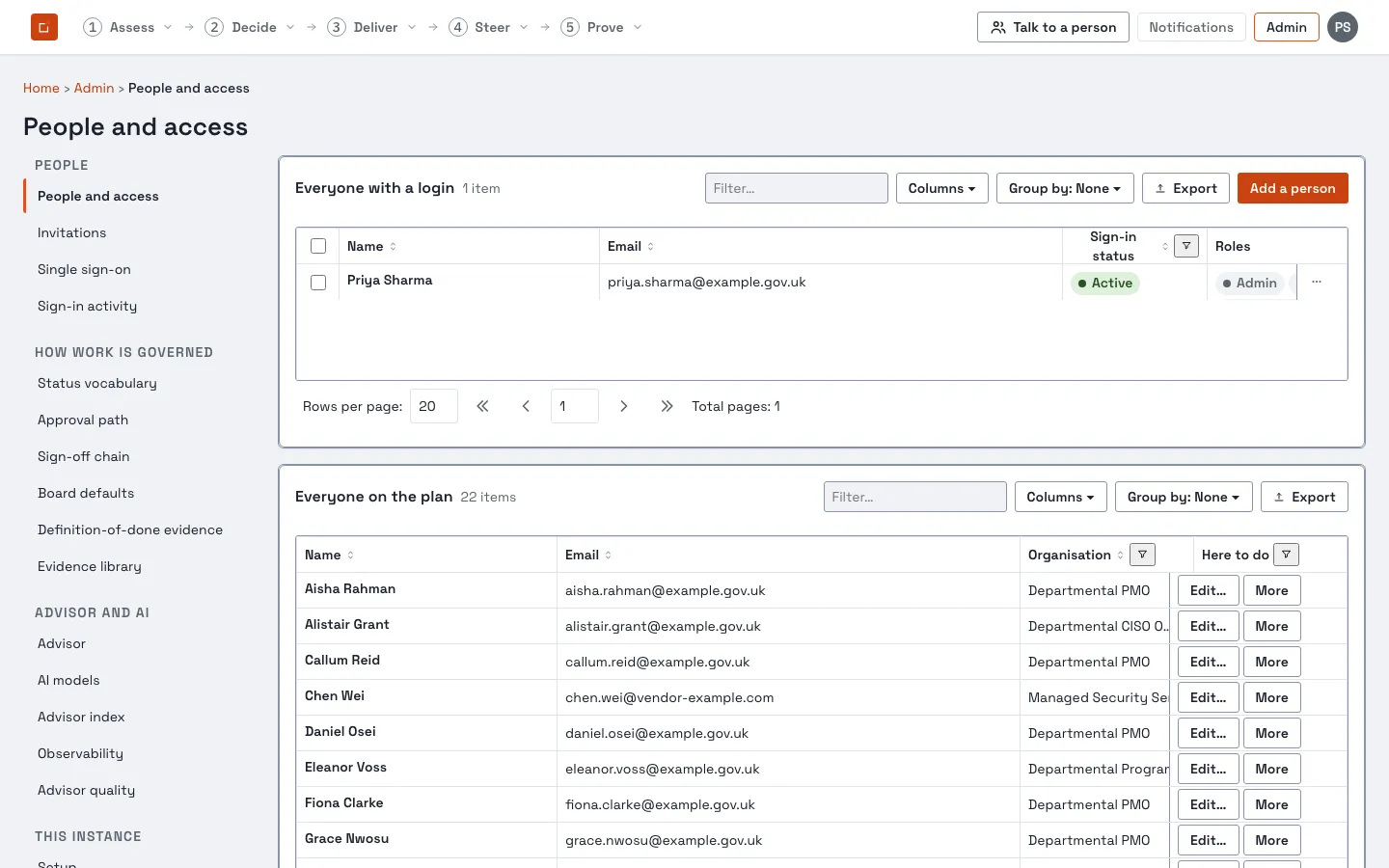
Reached from Admin → People and access. Managing people and their roles
needs the Admin role. From 1.0.5 a role can also hold Manage logins
(accounts.manage), which lets a person create logins and disable or re-enable
them without being able to change what roles can do, instance settings, branding
or the tracker connection. No seeded role holds it; it is for custom roles. See
Login managers below.
Admin is not the same as System administrator. The screens that run the instance itself, the licence, single sign-on, outbound email, updates, Advisor’s settings and Support settings, need the System administrator role instead, and an Admin who does not also hold it cannot open them. One person can hold both. See Roles and permissions.
Two different things: a person, and a login
Section titled “Two different things: a person, and a login”OTB Works keeps “someone the plan refers to” (a person, an owner, an assignee, a customer, a name in a report) separate from “someone who can sign in” (a user account). A stakeholder, a vendor contact, or someone you haven’t onboarded yet can be a person on the plan, nameable as an owner or customer , with no login at all. This screen lets you do either:
- Add a person with no login: for someone the plan needs to refer to who never needs to sign in.
- Add a person with a login: creates both at once: a sign-in account and the plan person it acts as, optionally with one or more roles granted immediately.
- Give an existing person a login: link a login to someone who’s already on the plan (as an owner, assignee or customer) rather than creating a duplicate identity. The screen refuses this if that person already has a login elsewhere, naming the account that already has it. Only an administrator can do this: the login acts as that person, with their reach and any role they already hold. A login manager is refused and is told so.
Every login account must be linked to a person, there’s no way around this any more. A sign-in account with no linked person can’t hold any role at all, so it is refused outright at creation time, not just discouraged. See When things go wrong for what happens to an account that predates this rule.
Granting and revoking roles
Section titled “Granting and revoking roles”Pick a person’s row, choose a role from the list, and grant it. The list shows the same plain-English description reproduced on the Roles and permissions page, a person deciding what to grant someone never has to read a permission key or a file path to understand what a role does. Revoking works the same way, one role at a time (a person can hold several roles at once, revoking one leaves the others in place).
A role change takes effect on that person’s very next request, no sign-out or re-login needed. OTB Works never caches a person’s roles in their session; every request resolves them fresh from the record of who currently holds what. If you grant someone Admin while they’re already signed in and looking at a “no permission” screen, refreshing the page is enough for the new access to appear.
Two refusals you’ll actually see
Section titled “Two refusals you’ll actually see”- You cannot grant yourself a role you don’t already effectively hold. This stops an administrator’s own account being used to silently self-escalate through some other path; the refusal names exactly which permission you were trying to grant yourself.
- You cannot remove the last administrator. Revoking the only remaining Admin role in the instance is refused outright, naming that as the reason, there is always at least one way back in.
The role catalogue
Section titled “The role catalogue”A person can hold more than one role, they’re additive. The full list of roles the product ships with, the wording the People and access screen shows for each, and exactly which permissions each one holds is on the Roles and permissions reference page. That page is generated from the product’s own role catalogue, so it is always the complete, current list.
Board Reader and Auditor are structurally read-only, the product refuses to even start up if either role were ever configured to hold something that changes data, rather than relying on a reviewer to notice. Assessor and Risk Owner are built the same deliberate way: an Assessor cannot attempt to accept a risk on their own finding, because the capability to accept any risk at all is simply absent from that role, not merely blocked by a check that happens to fire only sometimes.
Cost figures are a separate grant from the plan itself
Section titled “Cost figures are a separate grant from the plan itself”Holding a role that lets you see or edit the plan does not mean you can see what
anything costs. Seeing money is its own permission (costs.view), and the
role × permission matrix
shows exactly which roles hold it. Someone whose roles do not include it never
sees a figure, on any screen, including inside a report someone else generated.
Contact details
Section titled “Contact details”The people directory names everyone, so anyone can be assigned or mentioned. A
person’s email address, job role and organisation are shown only to someone
who holds Manage logins (users.read), and to each person on their own row.
Everyone else sees the name. In pickers, the Advisor and discussion mentions the
fields are absent, and a person with no address on file reads “no email address”
where a link could not reach them. The rule is the same on every instance.
An invitation list, and the address a link was sent to, follow the same rule: a reader who does not manage logins sees the name and that a link was issued.
Login managers
Section titled “Login managers”A person who holds Manage logins reaches People and access and sees only the actions they may take. They can create logins, disable them and re-enable them, and send a set-password link. They can give a new login only a role made of permissions they hold, and they cannot grant or revoke a role on an existing login.
They cannot do any of this to an administrator. A login that holds
admin.manage or instance.operate (the System administrator role) is out of
their reach: Disable, Re-enable and set-password link are greyed out with the
reason, and the server refuses with a 403. A disabled administrator still counts
as one. Administrators can manage each other. Creating a login that holds the
System administrator role needs the person creating it to hold that permission.
A login’s email and the person’s email
Section titled “A login’s email and the person’s email”A login’s address and a person’s directory email are two facts.
- Creating a login does not write its address onto the person. A new login’s address will not appear in pickers; the grid shows “No email” until someone adds a directory email on purpose.
- Set-password, reset and magic-link emails go to the login’s address. Ordinary notifications go to the person’s directory email, and fall back to the login’s address if the person has none.
- Mail with no address is recorded as failed and appears under Admin → Notifications → Failed sends (System administrator). It is not recorded as sent.
Single sign-on matching
Section titled “Single sign-on matching”If you use single sign-on, the address from your identity provider is matched against the login’s address first, then against the person’s directory email.
- If the person already has a login, the asserted address must be that login’s own address. A directory email that differs from the person’s existing login no longer signs anyone in; the person is told that the address identifies more than one sign-in account or person and that a programme administrator needs to correct it.
- A directory email is used to create a first login only for a person who has none,
and never for a person who holds
admin.manageorinstance.operate. An administrator creates that login. - An address held as one person’s login and another person’s directory email, or by more than one person, is refused and never guessed.
- A disabled login is refused by name: “This account has been disabled. Ask an administrator to re-enable it.”
Before upgrading to 1.0.5, check whether any person’s directory email differs from their login’s address. Anyone for whom it does is refused at their next single sign-on.
Stopping someone signing in
Section titled “Stopping someone signing in”Disable the account, do not revoke their roles. Admin → People and access has a Disable action on each account. Disabling blocks sign-in immediately, including a session that is already open, and leaves every role grant exactly as it was, so re-enabling restores the person without you having to remember what they held. Revoking roles instead destroys that history and still does not stop the sign-in itself.
You cannot disable your own login. This holds for an administrator and for a login manager alike. The Disable action on your own row is greyed out with the reason, and the server refuses it. Ask another administrator or login manager. Revoking your own roles is not blocked; a colleague can reverse it, and the last administrator is still protected.
The last enabled administrator cannot be disabled, the product refuses rather than letting you lock everybody out. Both disabling and re-enabling are written to the audit log.
Removing someone’s personal data
Section titled “Removing someone’s personal data”When a former colleague asks for their personal data to be erased, disable their login first, then open the row’s menu and choose Remove personal data…. The dialog says what will happen and asks you to confirm. It cannot be undone, and it is refused unless the login is disabled.
- Removed: the login’s email address (replaced by a placeholder that can never be mailed), the email address on their person record, their open sign-in links and sessions, and the other stored copies of the address.
- Kept: their name, the login, the roles they held and when, and every entry in the audit trail. The record of who did what is the purpose of the product, so the trail is not edited.
- Not removed: audit entries written before 1.0.5 still hold the address in their stored detail and in the CSV export, readable by anyone who can read the audit log. Sign-in attempts are logged with the address typed. Backups keep an address until they expire under your own backup policy. Entries written from 1.0.5 hold the login’s id; the audit screen looks the address up while the login exists and shows it only to someone who manages logins.
- Their name stays on the plan. If they have asked for that too, edit the person separately.
This is the one write that still works when the licence has lapsed and the instance is otherwise read-only: an erasure request does not wait for a renewal. It needs the same permission as disabling, and a login manager cannot do it to an administrator’s login. It is written to the audit log as one entry that does not contain the address.